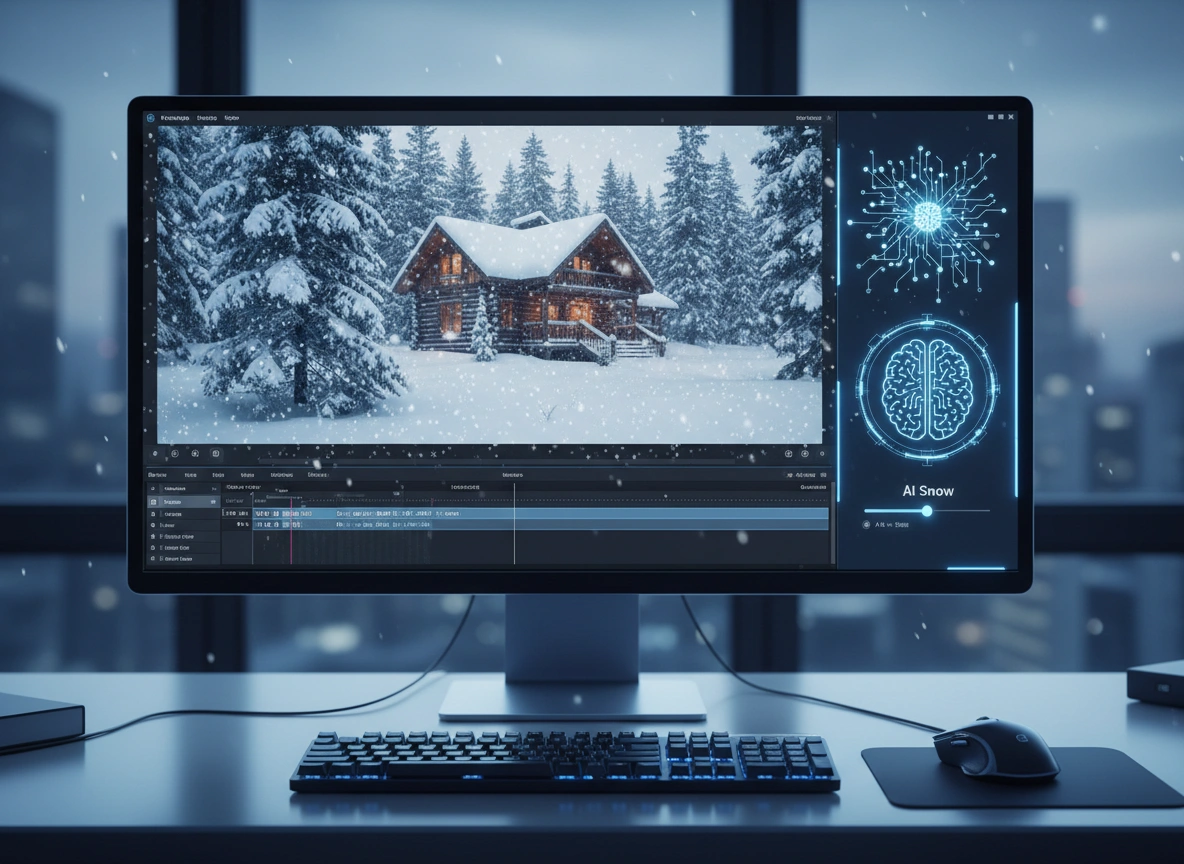
Adding a touch of winter magic to your videos can transform an ordinary scene into a captivating wonderland. A gentle snowfall can evoke feelings of warmth, nostalgia, or serene beauty, making it a popular effect for everything from holiday greetings to cinematic productions. In the past, creating this effect required complex software and hours of meticulous work. Now, artificial intelligence is changing the game, allowing creators of all skill levels to add stunning snowfall effects with just a few clicks.
This guide will walk you through how AI simplifies this creative process. We will explore the tools that make it possible, provide a step-by-step tutorial, and offer tips for achieving a professional and realistic look. By the end, you will understand how AI-powered video editing can save you time and unlock new creative possibilities for your projects.
The Role of AI in Modern Video Editing
Artificial intelligence has become an indispensable assistant in the world of video editing. AI algorithms are trained on vast datasets of images and videos, enabling them to understand and manipulate visual elements with remarkable precision. This technology automates tasks that were once tedious and time-consuming, such as object tracking, color correction, and background removal.
When it comes to adding effects like snow, AI offers a significant advantage over traditional methods. Manual techniques often involve creating particle systems from scratch or layering pre-made video overlays, which requires a deep understanding of keyframing, masking, and compositing. The final result can sometimes look artificial if not executed perfectly.
AI-powered tools streamline this entire workflow. Instead of manually animating individual snowflakes, the AI analyzes your footage to understand depth, motion, and lighting. It then intelligently generates and integrates a snowfall effect that appears to be a natural part of the scene. The AI can automatically adjust the size, speed, and direction of snowflakes to match the video’s context, creating a seamless and believable result in a fraction of the time.
A Step-by-Step Guide to Adding Snowfall Effects with AI
While specific steps can vary between software, the general process for adding AI-driven snow effects is straightforward. Let’s look at how you can achieve this using some of the most popular AI video editing platforms.
Popular AI Tools for Video Effects
Several powerful and user-friendly tools have emerged that leverage AI for video enhancement. Here are a few notable examples known for their high-quality effects:
- CapCut: A versatile and widely used video editor for mobile and desktop, CapCut offers an extensive library of AI effects, including multiple variations of snow. Its intuitive interface makes it accessible for beginners.
- Runway: A robust, browser-based video editing suite, Runway provides advanced AI magic tools. Its features allow for highly customizable effects, giving creators more granular control over the final look.
- Veed.io: Another online video editor, Veed focuses on simplicity and speed. It includes a one-click snow effect that is perfect for social media content or quick projects where time is of the essence.
- Wondershare Filmora: This desktop software balances ease of use with powerful features. Its AI-powered tools, including effects and smart templates, help streamline the editing process for both new and experienced editors.
Step 1: Import Your Video
Begin by launching your chosen AI video editing software. Whether you are using a desktop application or a web-based platform, the first step is to create a new project. Locate the “Import” or “Upload” button and select the video file from your computer that you wish to edit. Once imported, drag the video clip onto the main timeline to begin working on it.
Step 2: Locate the AI Effects Library
With your video on the timeline, it’s time to find the snowfall effect. Navigate to the effects panel or library within the software. This section is typically labeled “Effects,” “Stickers,” or “AI Tools.” Inside, you will likely find effects categorized by theme, such as “Nature,” “Weather,” or “Winter.” Browse these categories until you find the snowfall options. Many platforms offer several styles, from light, gentle flurries to heavy blizzard conditions.
Step 3: Apply and Adjust the Snowfall Effect
Applying the effect is often as simple as dragging it from the library and dropping it directly onto your video clip in the timeline. Alternatively, you might need to select your video clip and then click on the desired snow effect to apply it.
Once the effect is applied, you will see snowflakes appear over your footage. The AI will immediately analyze the scene to integrate the effect. Now, you can fine-tune its appearance. Look for an “Adjust” or “Settings” panel associated with the effect. Here, you can typically modify parameters such as:
- Intensity/Amount: Controls the density of the snowflakes.
- Speed: Determines how fast the snowflakes fall.
- Size: Adjusts the size of the individual flakes.
- Direction: Changes the angle at which the snow falls, which can be useful for matching wind direction in your scene.
Experiment with these settings until the effect complements your video. A subtle, slow-falling snow might suit a quiet, romantic scene, while a fast, dense flurry could enhance a dramatic or action-oriented clip.
Step 4: Export Your Final Video
After you are satisfied with how the snowfall looks, the final step is to export your project. Click the “Export” or “Share” button, which will open the export settings window. Here, you can choose your desired resolution (e.g., 1080p, 4K), frame rate, and file format (usually MP4). Confirm your settings and start the rendering process. The software will then process your video and save the final file with the beautiful snowfall effect baked in.
Tips for Achieving Realistic Snowfall Effects
While AI does most of the heavy lifting, a few creative touches can elevate your effect from good to great. A convincing snowfall interacts with its environment. Here are some pro tips for adding that extra layer of realism.
Adjust Opacity and Blending Modes
Not all snowflakes should be equally visible. To create a sense of depth, some should appear closer and more defined, while others should be fainter and further in the background. If your software allows, try adjusting the opacity of the snow effect. A slightly lower opacity can help the snow blend more naturally with the underlying video. You can also experiment with blending modes like “Screen” or “Add,” which can create a more luminous and realistic look, especially in night scenes.
Layer Multiple Snow Effects
For ultimate realism, consider layering two or more different snowfall effects. Use a primary layer with larger, faster-moving flakes to represent the foreground. Then, add a second layer with smaller, slower-moving, and more transparent flakes to simulate snow in the distance. This technique, known as parallax, mimics how our eyes perceive depth and will make your scene feel much more immersive.
Incorporate Motion Blur
In real life, moving objects captured on camera often have a slight blur. Snowflakes are no exception. If your video editor has a motion blur setting for effects, applying a small amount can make the snow’s movement appear more natural and less like a digital overlay. This is particularly effective for faster-falling snow, as it smooths the animation and enhances the sense of speed.
Match the Lighting and Color
Pay attention to the lighting in your original video. If it’s a daytime scene, the snow should be bright white. For a nighttime or dimly lit scene, the snow should reflect the ambient light. Some advanced tools may allow you to tint the snow effect slightly. Adding a subtle blue or yellow hue to match the color temperature of your shot can help the effect blend in seamlessly.
The Broader Benefits of Using AI in Video Creation
The ability to easily add complex effects like snow is just one example of how AI is transforming video production. The benefits extend across the entire creative process.
- Unmatched Time Efficiency: AI automates repetitive tasks, freeing up creators to focus on storytelling and creativity. What once took hours of manual adjustments can now be accomplished in minutes.
- Accessibility for All: AI-powered tools lower the barrier to entry for professional-quality video editing. You no longer need to be a technical expert to produce visually stunning content.
- Enhanced Creative Freedom: With AI handling the technical complexities, you are free to experiment. You can quickly test different effects, styles, and ideas without a significant time investment, fostering a more innovative approach to your projects.
- Consistency and Quality: AI algorithms deliver consistent and high-quality results. This is especially valuable for creators producing content on a regular basis, as it helps maintain a cohesive and professional brand image.
Conclusion: Embrace the Future of Video Editing
Adding snowfall to a video can dramatically enhance its mood and visual appeal. Thanks to artificial intelligence, this once-complex task is now accessible to everyone. By leveraging AI-powered video editors, you can create beautiful, realistic snow effects quickly and efficiently, regardless of your technical expertise.
The rise of AI in creative fields is not about replacing human creativity but augmenting it. These tools empower you to bring your vision to life with greater ease and precision than ever before. So, the next time your project needs a touch of winter magic, don’t hesitate to explore the powerful and intuitive world of AI video editing.
Please click here for more info